

User Authentication and Password Set Up
Request access via the G-Cubed Support Form and select NEW USER.
Enter the following required information:
- Agency name
- 8-digit ticketing IATA number
- Telephone number
- Business address
- Your first and last name
- Include your agency G-Cubed Office ID, if already set up, to ensure you are added to the same Office ID
Once completed, you will receive 2 emails from Amadeus “no reply” address.
1st email is a two-step process instructions requiring password creation and validation.
From: "Amadeus Security Service" <noreply@amadeus.com>
Sent: February 21, 2020 10:01 AM
To: chris@travel.com
Subject: Your Amadeus Account
Dear xxxxxxx
You can change your password to activate your account, enforce security, or if you forgot it.
Please change your password with Internet link or Intranet link and follow the instructions.
Your Amadeus account password is used to access many Amadeus solutions, like Amadeus Reservation Desktop or Selling Platform Connect.
Below is your account information that may be requested to login to different Amadeus solutions:
Organization: AC-AIDL
UserID: CSMITH (example)
Login: CSMITH (same as UserID)
Default Office: YOWACXXXX for Canada, and WASACXXXX for the USA
Sign: 1111CC (example)
Best regards,
The Amadeus Security Team
Once you click on the link in above email, a window will display to create your password.
The new password requires a minimum of 8 characters that includes upper- and lower-case letters, a number and a special character (!, #, @, % etc.). Passwords expire every 3 months.
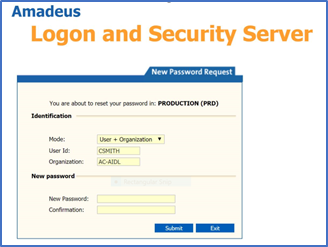
Note: Organization should be AC-AIDL.
Enter your password in the New Password and Confirmation fields and click Submit.
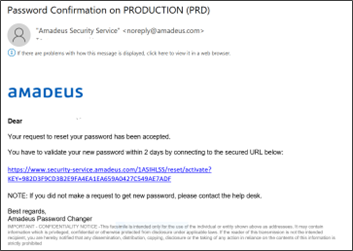
2nd email from Amadeus ‘no-reply’ requires you to immediately confirm your password.
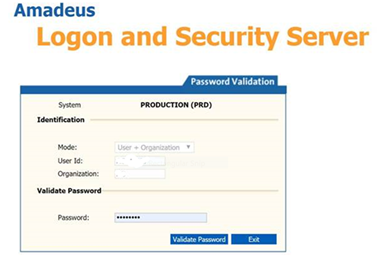
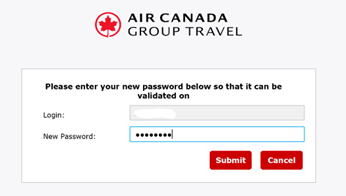
Password Validation
Enter the information as required in these two boxes to complete the password validation.
If you don’t see these emails in your inbox, please check your Spam or Junk mail folder.
Instructions to access G-Cubed to start booking
Access G-Cubed here.
Enter your Login and Office ID that were on the activation email, and click Next in the password window:
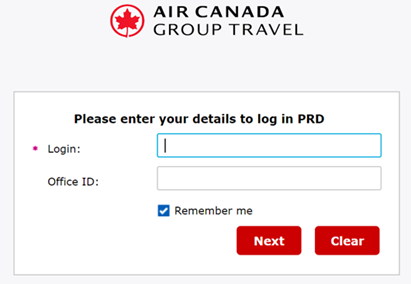
(Login and User ID are the same, example Login CSMITH, Office ID was in initial email with YOWACXXXX or WASACXXXX format)
If you receive PASSWORD FAILED, click “Forgot your password” and select a new password.
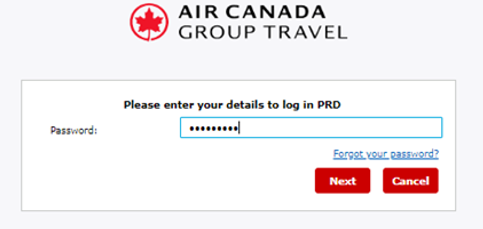
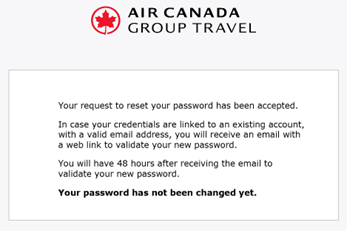
After creating your new password, you will receive 2 responses. The first response is a confirmation that your password was accepted.
The second response requires you to validate your password change.
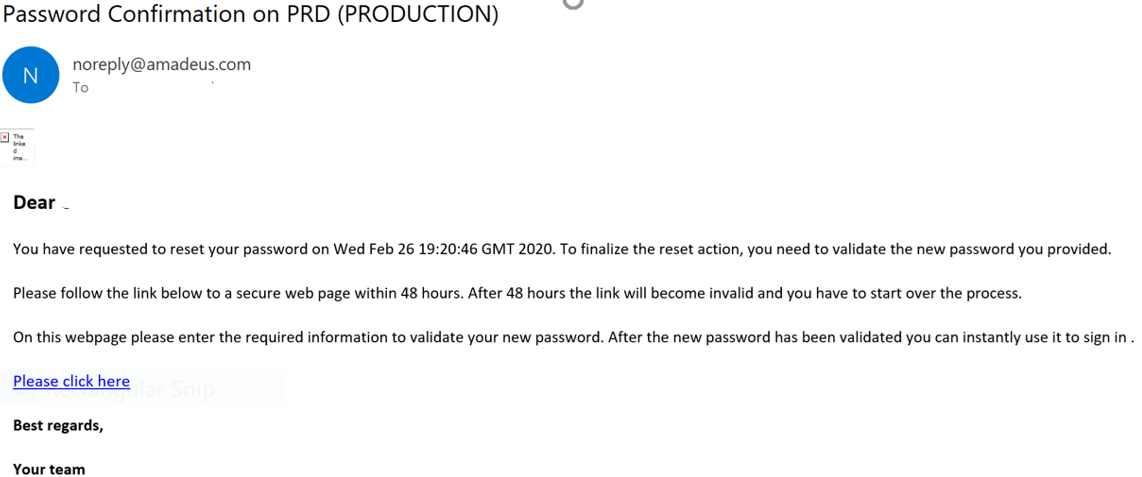
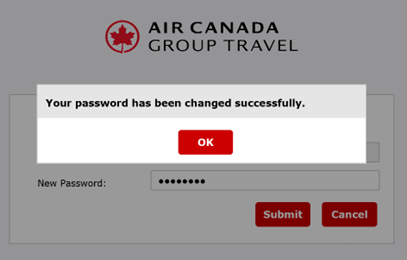
Confirmation of password successfully changed:
Links to support your journey with G-Cubed
- Login or password assistance via G-Cubed Support Form Canada
- Consult G-Cubed Tool video tutorial and start booking!